
Tasks
A task is anything you want to get done. Give it as much or as little detail as you like: a title is enough.
Create a task
Section titled “Create a task”- Open Tasks and tap +.
- Type the title in What needs doing?.
- Tap Show task details for the rest: Details (notes, supports Markdown), Tags, and a row of buttons for due date, priority, energy, activity, reminder and repeat.
- Save.
Each group header also has a + that creates a task already matching that group (for example, due today).
From the home screen: long-press the app icon › Add task, or use the + on a Kombine widget (Android also has a one-tap Add task widget). See Today.
On a tablet, a quick-add bar sits at the bottom of the list.
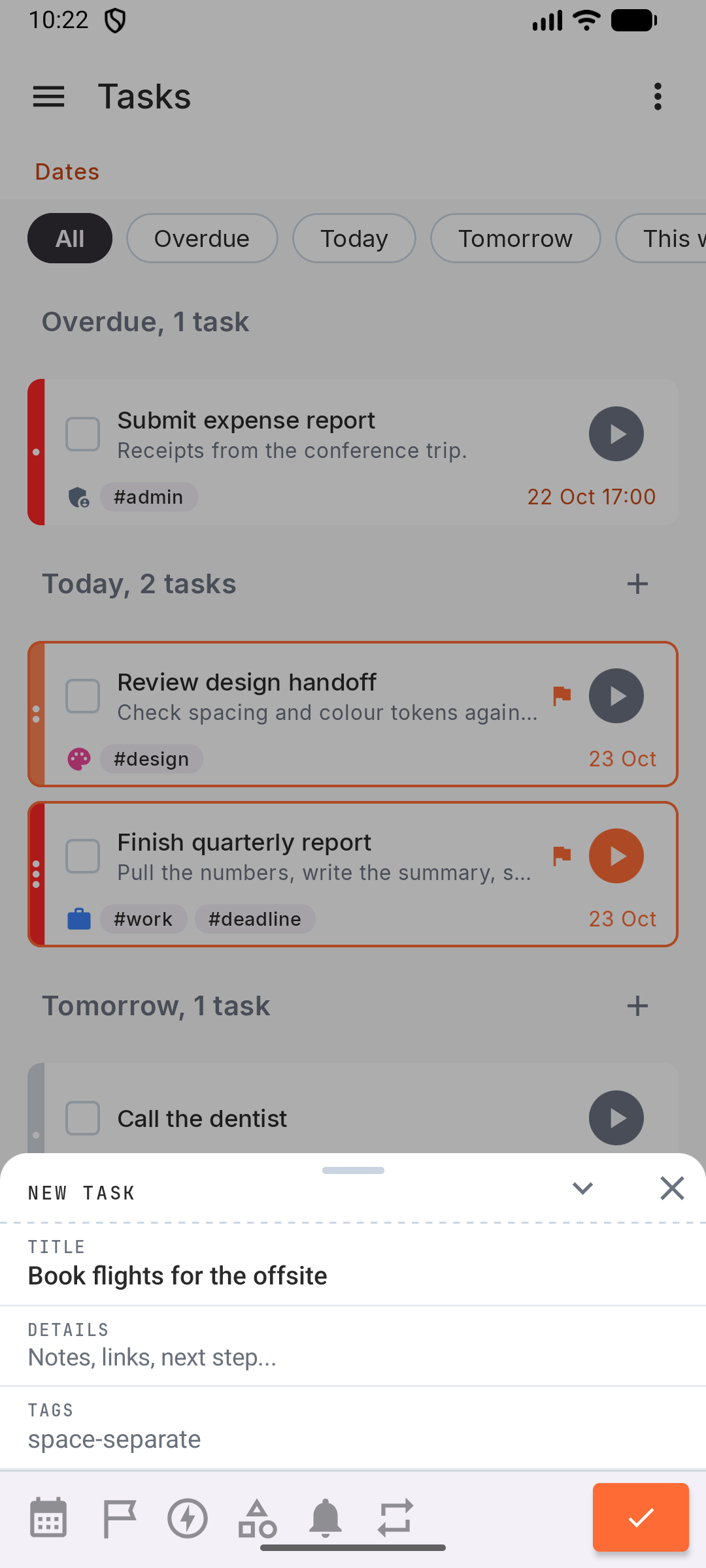
- Open Tasks and tap +.
- Type the title in What needs doing?.
- Tap Show task details for the rest: Details (notes, supports Markdown), Tags, and a row of buttons for due date, priority, energy, activity, reminder and repeat.
- Save.
Each group header also has a + that creates a task already matching that group (for example, due today).
From the home screen: long-press the app icon › Add task, or use the + on a Kombine widget (Android also has a one-tap Add task widget). See Today.
On a tablet, a quick-add bar sits at the bottom of the list.
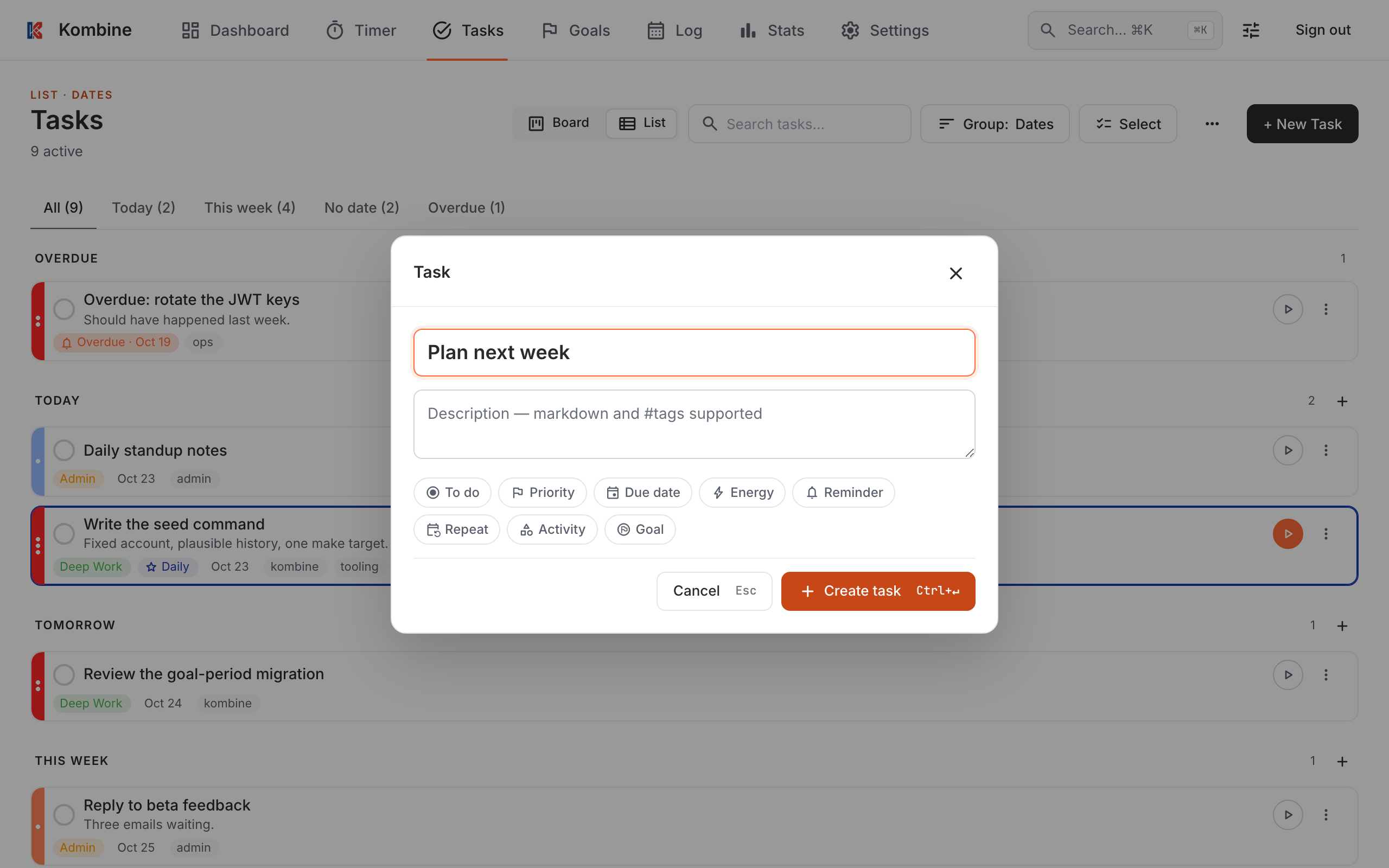
- Open Tasks and click + New Task (Ctrl+M).
- Type the title in Task name.
- Add a description if you want. It supports Markdown, including checklists (
- [ ]). - Set any of the chips: Status, Priority, Due date, Energy, Reminder, Repeat, Activity, Goal.
- Click Create task (or Ctrl+Enter).
Each group also has a + that creates a task already matching that group.
Task details
Section titled “Task details”- Priority: High, Medium or Low, or none. Priority says how important a task is; the due date says how urgent.
- Energy: High, Mid or Low. How much energy the task needs, so you can match tasks to how you feel.
- Due date: quick picks for Today, Tomorrow, Next week and Weekend, or any date, with an optional time.
- Tags: short labels like
workorerrands. - Activity: the kind of work, used to tag focus sessions. See Activities.
- Goal: link the task to one of your goals. Optional.
- Reminder: see Reminders.
Type tags in the Tags field, separated by spaces. Words starting with # in the description also become tags.
Existing tags are suggested as you type; tap one to add it. If a new tag looks like a typo of an existing one, you’ll see “Did you mean #work?”. Tap it to swap the tag, or ignore it to keep your new tag.
Type tags in the Tags field, separated by spaces. Words starting with # in the description also become tags.
Existing tags are suggested as you type; tap one to add it. If a new tag looks like a typo of an existing one, you’ll see “Did you mean #work?”. Tap it to swap the tag, or ignore it to keep your new tag.
Tags come from #words in the description, for example Call the bank #errands. There is no separate tag field.
Existing tags are suggested as you type a #word; click one, or use the arrow keys and Enter or Tab. If a new tag looks like a typo of an existing one, its chip under the description shows “Did you mean work?”. Click it to fix the description, or ignore it to keep your new tag.
Checklists
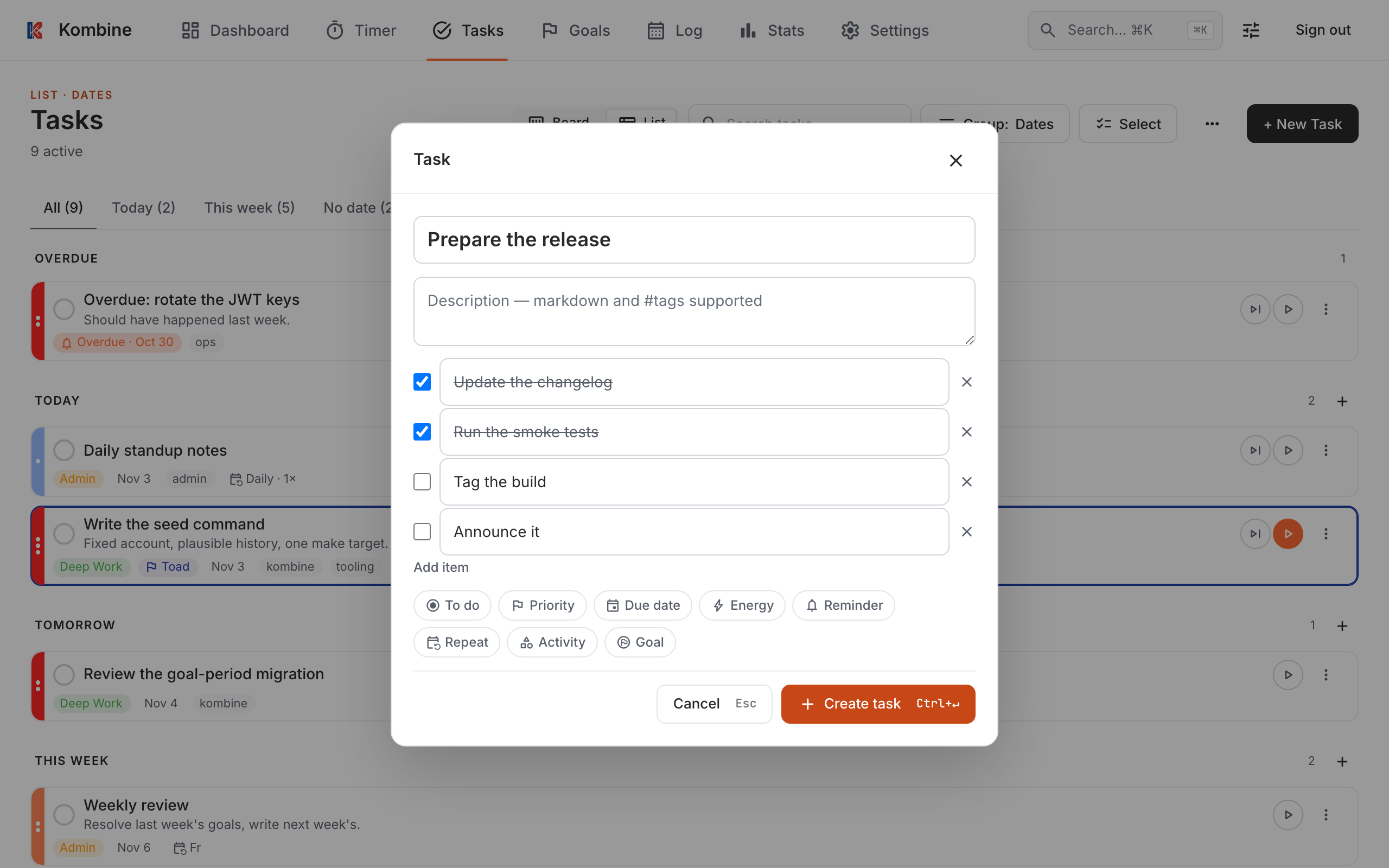
Section titled “Checklists”Break a longer task into a few steps with checklist items. They sit below the description, in the new-task form and when you open a task, and you tick them there rather than on the task card.
Items are steps, not separate tasks. Ticking the last one doesn’t complete the task, completing the task doesn’t tick them, and ticks don’t count in your Log, stats or streaks.
On a repeating task, every item is unticked each time the task moves to its next date, whether you completed or skipped it. Changing the date by hand keeps the ticks, and Undo puts the date back but not the ticks.
You can also type - [ ] milk in the description (- [x] milk for a ticked item). It becomes an item when you leave the field. Item text shows as written, without Markdown, but a #tag in an item still counts as a tag.
- Add: tap Add item below Details and type. Done on the keyboard adds the next one. In a new task, tap Show task details first.
- Tick: tap the checkbox. On an existing task, the tick is saved right away. Text changes are saved when you close the task.
- Delete: tap ✕, or leave an item empty and move away.
- Add: tap Add item below Details and type. Done on the keyboard adds the next one. In a new task, tap Show task details first.
- Tick: tap the checkbox. On an existing task, the tick is saved right away. Text changes are saved when you close the task.
- Delete: tap ✕, or leave an item empty and move away.
- Add: click Add item below the description and type. Enter adds the next one.
- Tick: click the checkbox. On an existing task, the tick is saved right away. Other changes are saved when you click Save.
- Delete: click ✕, or leave an item empty and move away.
Repeating tasks
Section titled “Repeating tasks”Open Repeat on a task and pick:
- Daily
- Weekly, on the days you choose (or Weekdays, Weekends, Every day)
- Monthly, on the due date’s day, the first day, or the last day of the month
- Custom interval: every N days, weeks, months or years
Then choose how the next one is scheduled:
- On schedule: follows the calendar. A weekly Monday task stays on Mondays even if you finish it on Wednesday.
- After completion: counts from when you finish. “Every 10 days, after completion” means 10 days after you last did it.
To stop a task repeating but keep it, choose Don’t repeat.
Complete or archive a repeating task
Section titled “Complete or archive a repeating task”- Complete: moves the task to its next date and counts as done, in your Log, stats and streaks.
- Archive: stops the whole series. Unarchive it to bring the series back.
An overdue On schedule task catches up in one go: completing or skipping it moves it to the first date after today, and counts once. The missed dates are passed over. This applies even if today is one of its days: a Monday task overdue from last week, completed on a Monday, moves to next Monday.
To archive a repeating task, long-press it and choose Archive, or use the ⋯ menu of an open task.
To archive a repeating task, long-press it and choose Archive, or use the ⋯ menu of an open task.
To archive a repeating task, use the card’s ⋮ menu or the Archive button in the task form. On an archived task, that button is Unarchive.
Skip a task
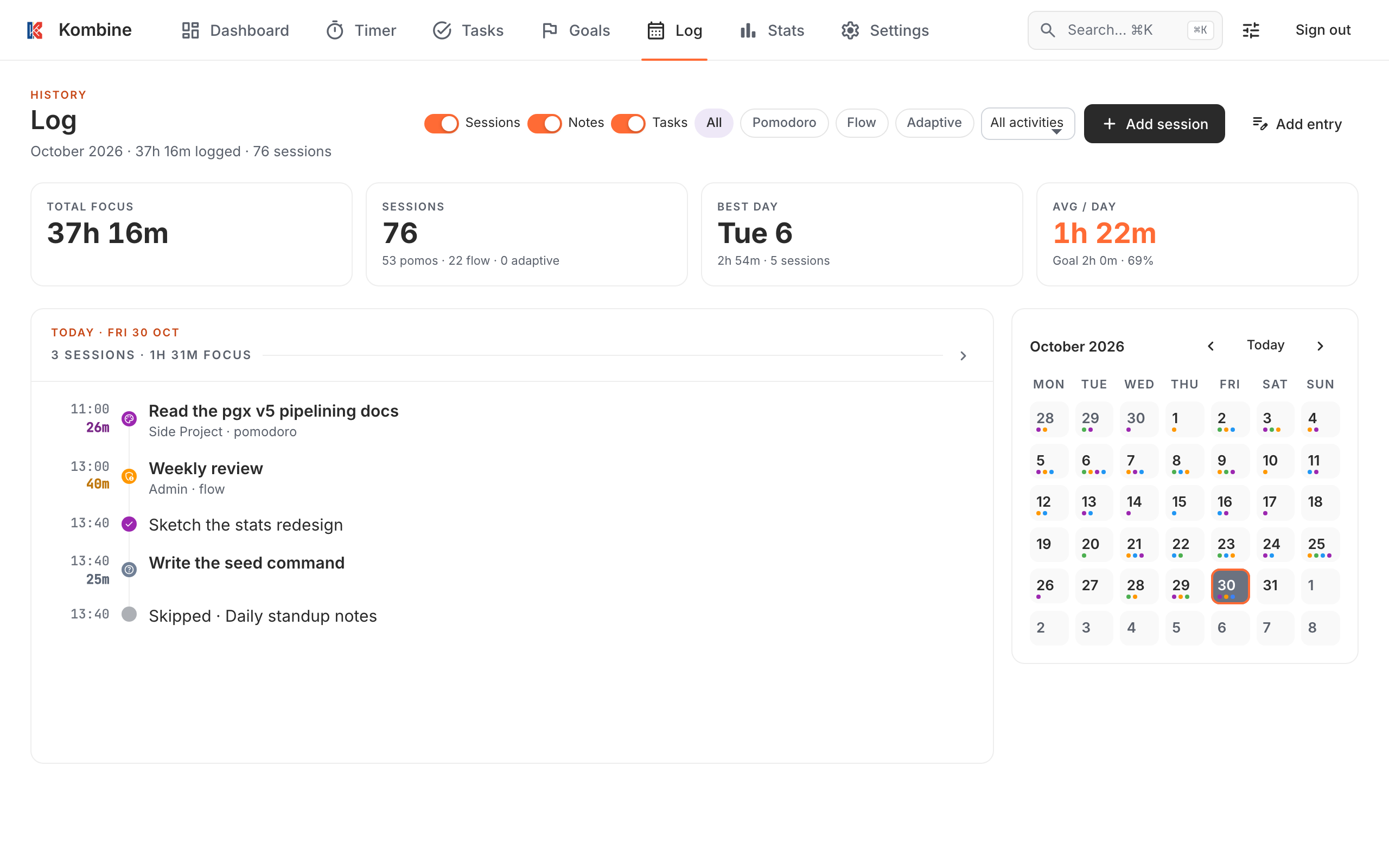
Section titled “Skip a task”Skip passes over a due date you won’t get to. It doesn’t count as done: it shows as “Skipped” in your Log and adds nothing to your stats or streaks. A message offers Undo, which puts the task back on its previous date.
- One-time task: moves to tomorrow, at the same time of day if it has one. Its status stays the same.
- Repeating task: moves to its first date after today.
Skip appears only when a task is due today or overdue, so not on a task due later, one with no date, or one that’s Done or archived. To move a task due later, change its date. Changing a date by hand or by dragging isn’t a skip, and doesn’t show in your Log.
Swipe the task right, or long-press it and choose Skip this time. You’ll also find Skip this time in the ⋯ menu of an open task.
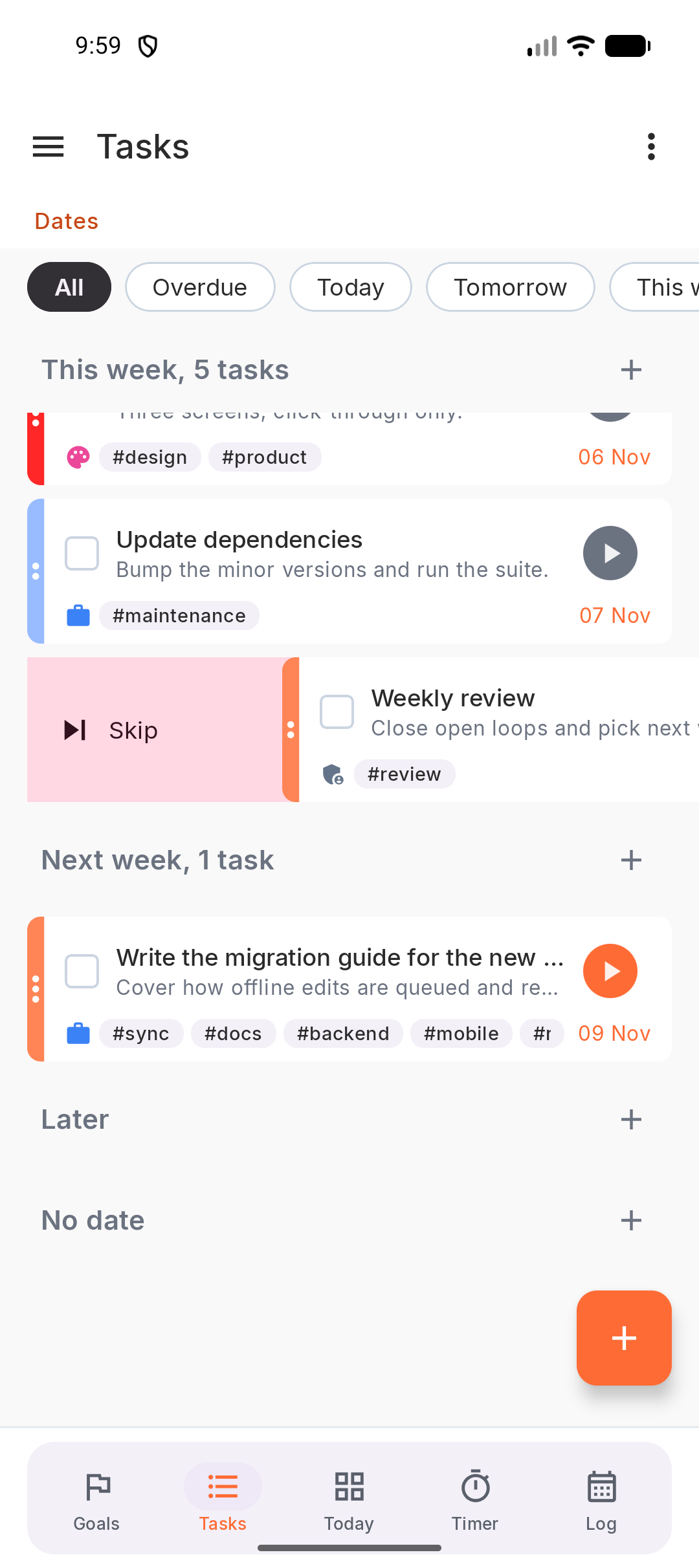
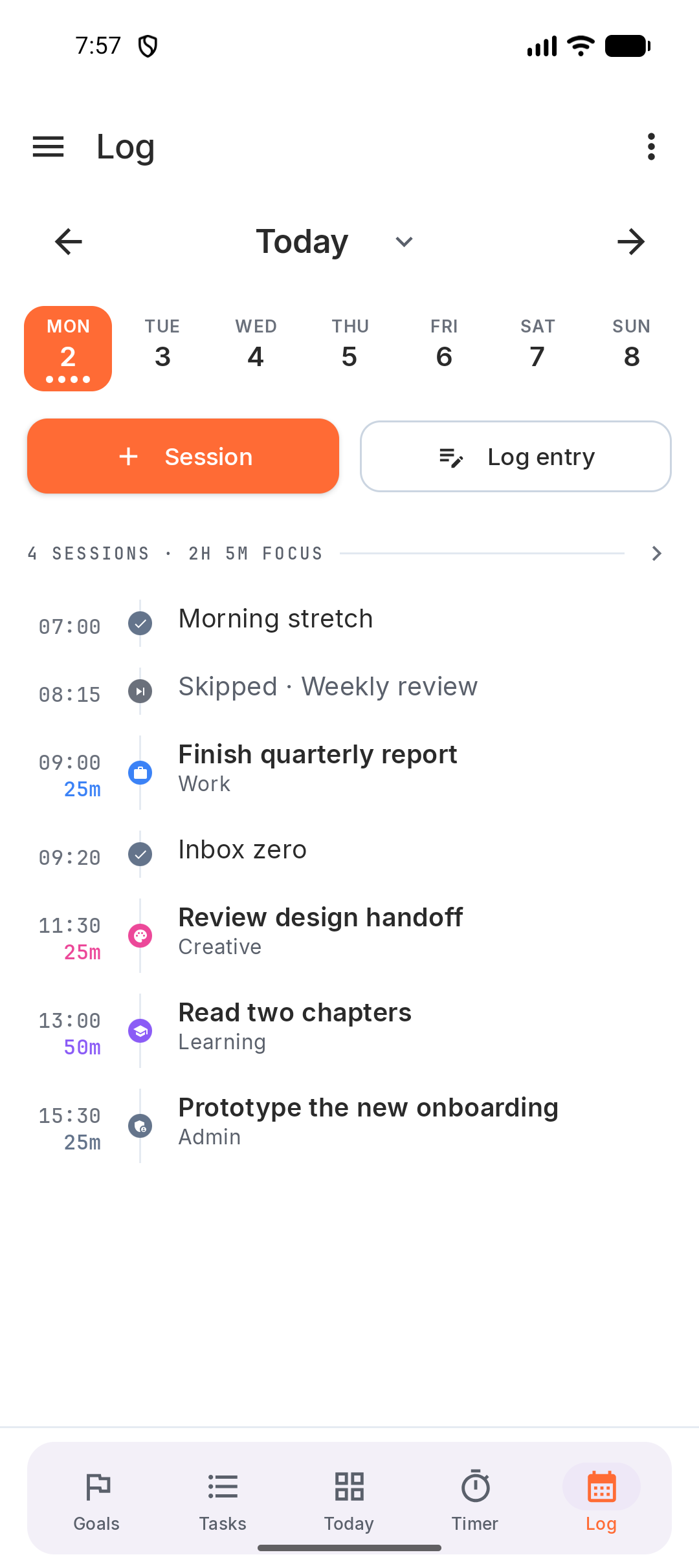
Swipe the task right, or long-press it and choose Skip this time. You’ll also find Skip this time in the ⋯ menu of an open task.
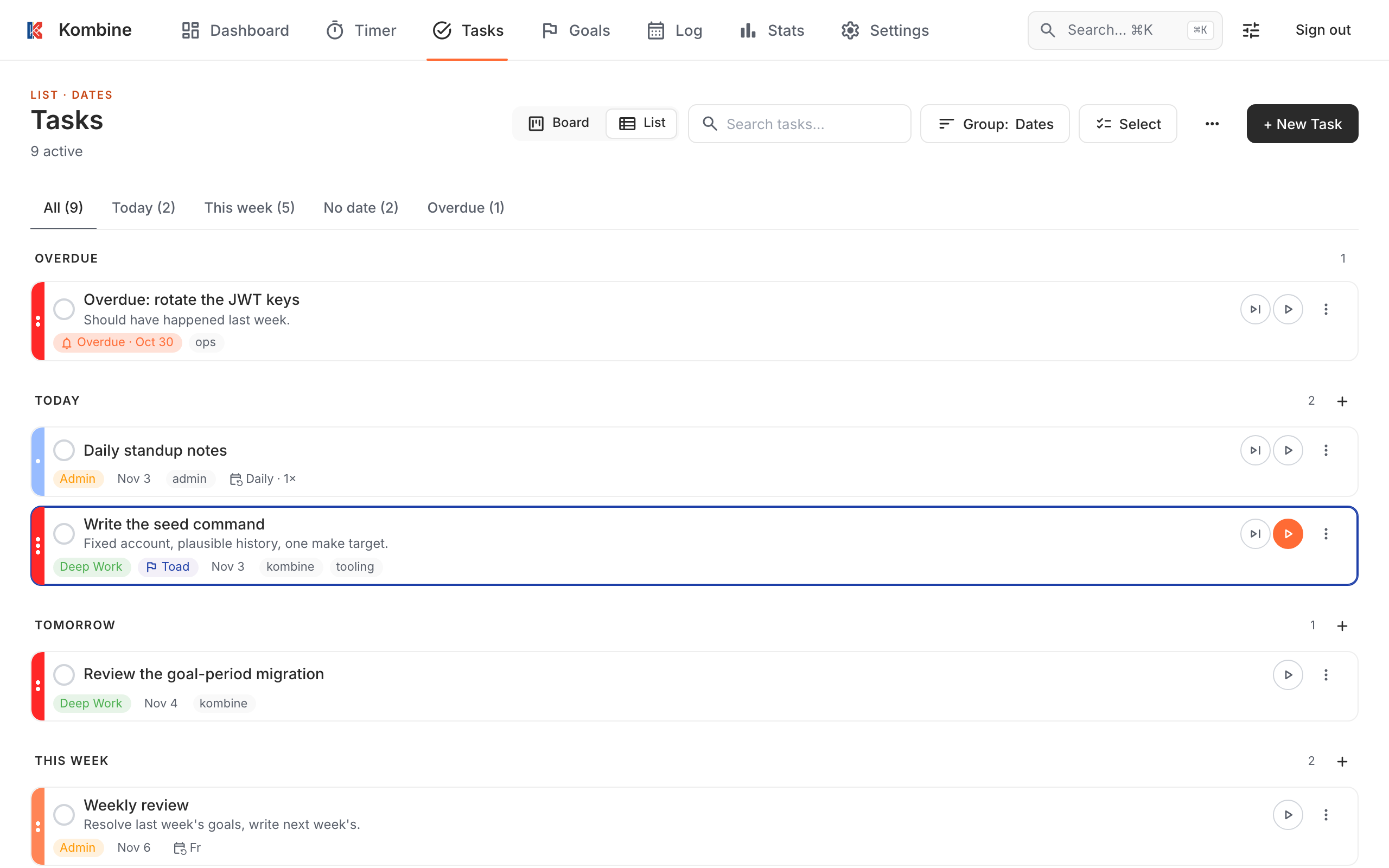
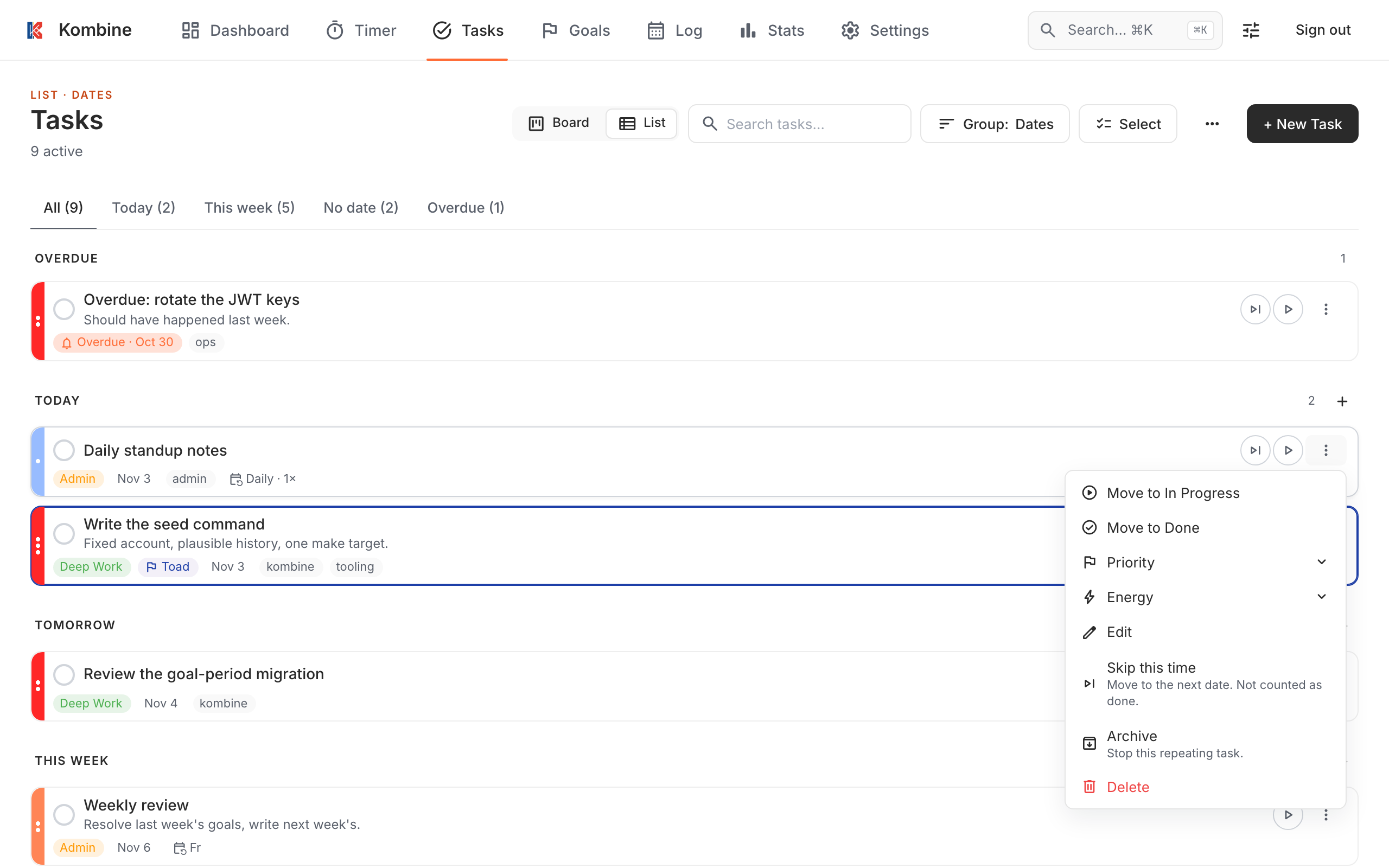
Click the skip button (⏭) next to the play button on the card, or open the card’s ⋮ menu and choose Skip this time. The task form has a Skip this time button too.
Complete, archive, delete
Section titled “Complete, archive, delete”- Complete: tap the checkbox on the card. A message offers Undo.
- Archive: long-press the card and choose Archive. Archived tasks are under ☰ › Archive.
- Swipe right: skips a task due today or overdue. Any other task is archived, except a repeating task that isn’t due yet, which has no right swipe.
- Delete: swipe the card left.
- Long-press a task for more: Edit, Start focus, Complete / Reopen, Skip this time, Set as today’s toad, Link to goal, Archive, Delete, Priority, Energy, and In progress.
Tap a task to open it. Its ⋯ menu has Skip this time, Archive / Unarchive, Link to goal and Delete.
- Complete: tap the checkbox on the card. A message offers Undo.
- Archive: long-press the card and choose Archive. Archived tasks are under ☰ › Archive.
- Swipe right: skips a task due today or overdue. Any other task is archived, except a repeating task that isn’t due yet, which has no right swipe.
- Delete: swipe the card left.
- Long-press a task for more: Edit, Start focus, Complete / Reopen, Skip this time, Set as today’s toad, Link to goal, Archive, Delete, Priority, Energy, and In progress.
Tap a task to open it. Its ⋯ menu has Skip this time, Archive / Unarchive, Link to goal and Delete.
- Complete: click the checkbox on the card. A message offers Undo. Clicking the checkbox of a Done task reopens it.
- Change status: drag the card to another group in the Status grouping, or use the card’s ⋮ menu.
- Archive or Delete: the card’s ⋮ menu, or the Archive button and Delete task link in the task form.
- Archived tasks: Tasks › ⋯ › Archived, where each one has Restore.
- Several at once: click Select, tick tasks, then Mark done, Archive, Tag or Set energy. Tag suggests your existing tags.
Group, sort and search
Section titled “Group, sort and search”You can group tasks by:
- Dates (default): Overdue, Today, Tomorrow, This week, Next week, Later, No date. Weeks run Monday to Sunday.
- Status: To do, In progress, Done.
- Priority and Energy.
- Eisenhower: urgent (due within 3 days) crossed with important (High priority).
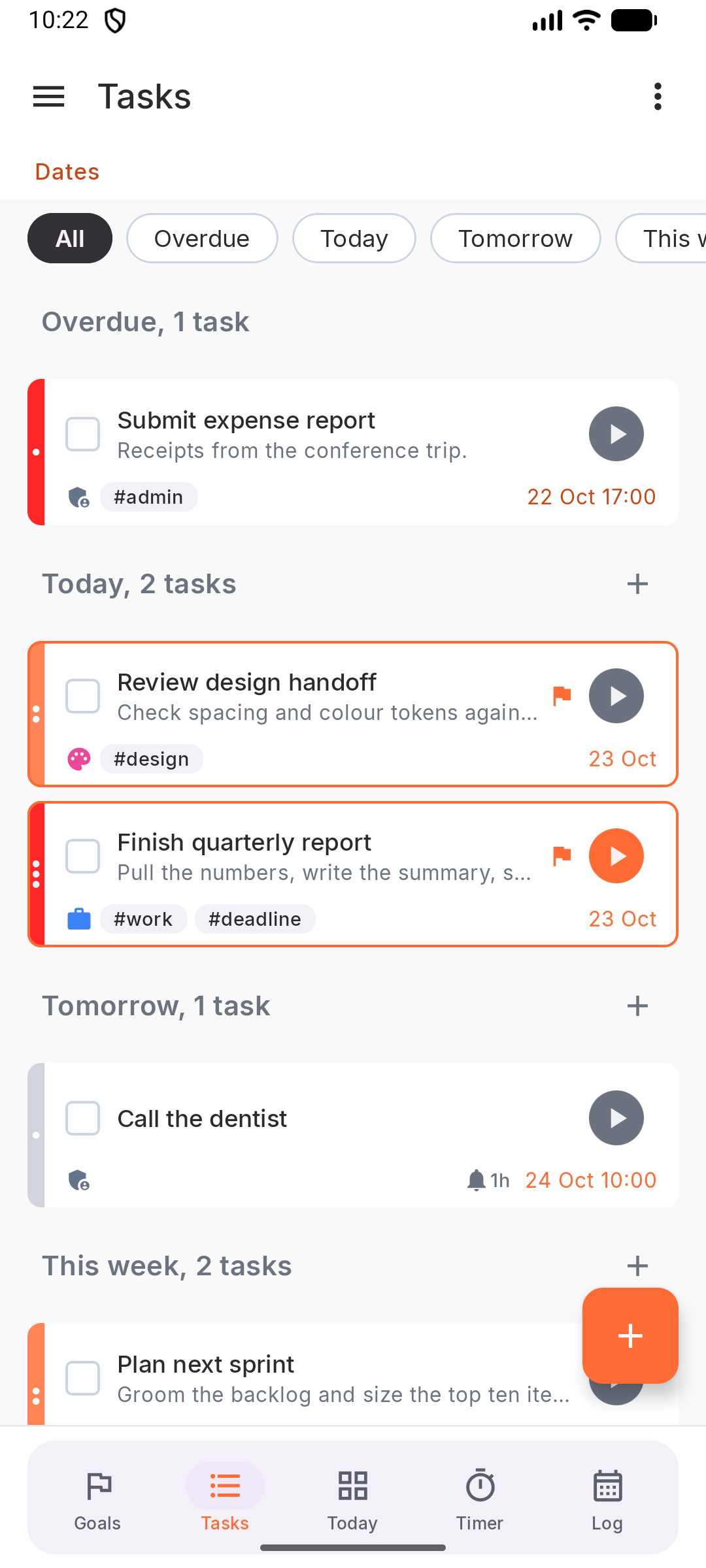
- Choose the grouping in the ☰ drawer under Group by. The phone also offers Tags and Goals.
- Use the chips under the top bar to show one group only.
- The ⋮ menu has Show completed tasks, Sort by (Created date, Deadline, Priority, Title) and Descending order.
The grouping is remembered on each device.
- Choose the grouping in the ☰ drawer under Group by. The phone also offers Tags and Goals.
- Use the chips under the top bar to show one group only.
- The ⋮ menu has Show completed tasks, Sort by (Created date, Deadline, Priority, Title) and Descending order.
The grouping is remembered on each device.
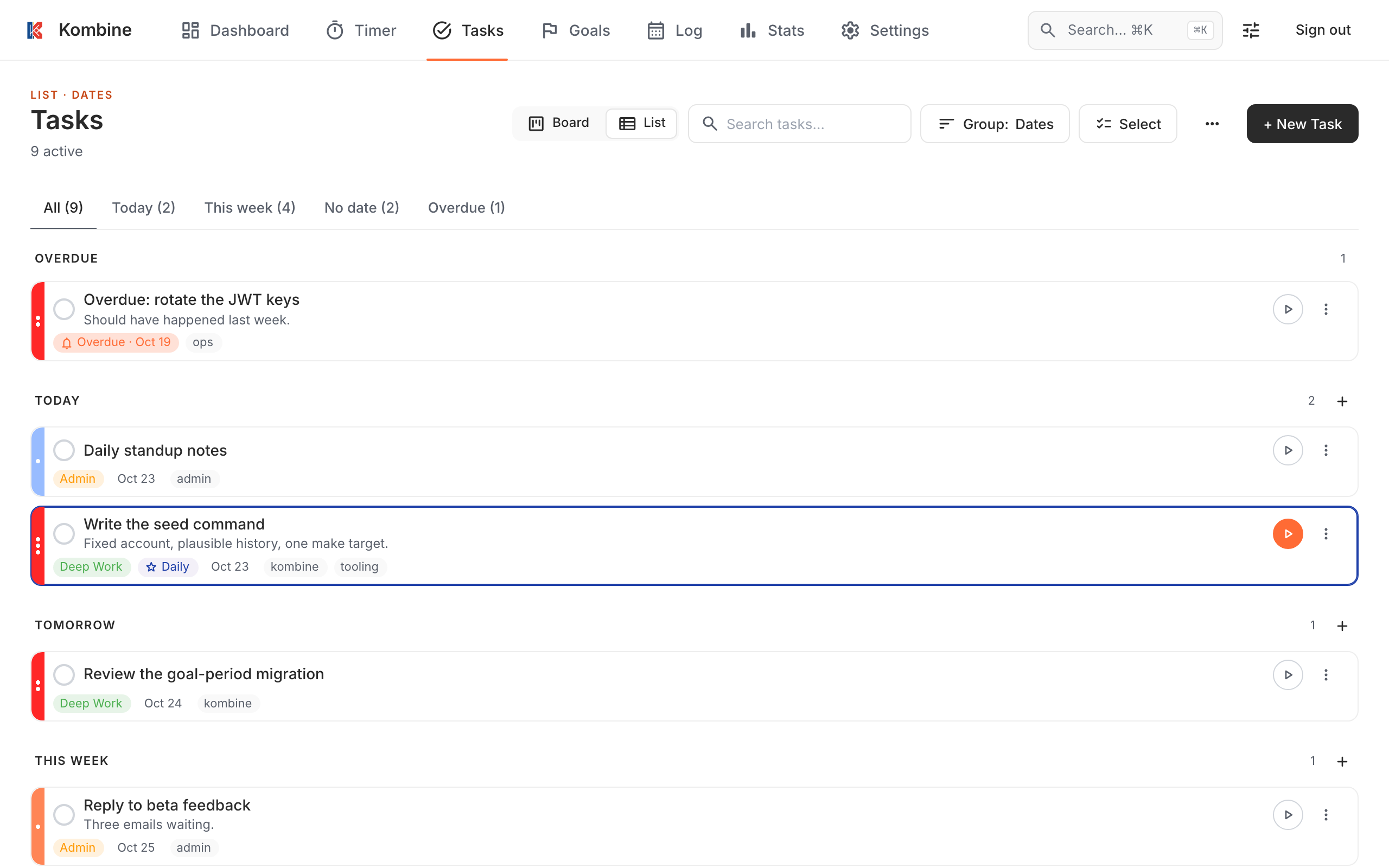
- Choose the grouping in the Group: menu. Board / List switches the layout.
- Filter tabs above the list: All, Today, This week, No date, Overdue.
- Type in Search tasks… to filter as you type, or press / to search everything.
- Completed tasks show in the Done column of the Status grouping for 7 days.
The grouping and layout are remembered in your browser.
Drag a task between groups
Section titled “Drag a task between groups”Drag a task into another group to change its energy, priority, status or date. The current sort then decides where it sits in the new group.
| Group by | Drop on | What changes |
|---|---|---|
| Energy | High, Mid, Low, No energy set | Sets the energy. No energy set clears it. |
| Priority | High, Medium, Low, No priority | Sets the priority. No priority clears it. |
| Status | To do, In progress, Done | Sets the status. Dropping on Done completes the task, the same as its checkbox. |
| Dates | Today, Tomorrow, No date | Moves the due date and keeps the time of day. No date clears it. |
Dates has a few limits:
- Overdue, This week, Next week and Later can be dragged from, but not dropped on.
- A repeating task can’t be dropped on No date. To remove its date, edit the task.
- A Done task can’t be dragged.
Dragging is off in the other groupings. Release a task outside a highlighted group to cancel.
Long-press a card, then move it without lifting your finger, and release it on a highlighted group. If you release without moving, the task menu opens as usual.
Without dragging, long-press a task and use Priority, Energy, In progress or Complete. To change a date, open the task.
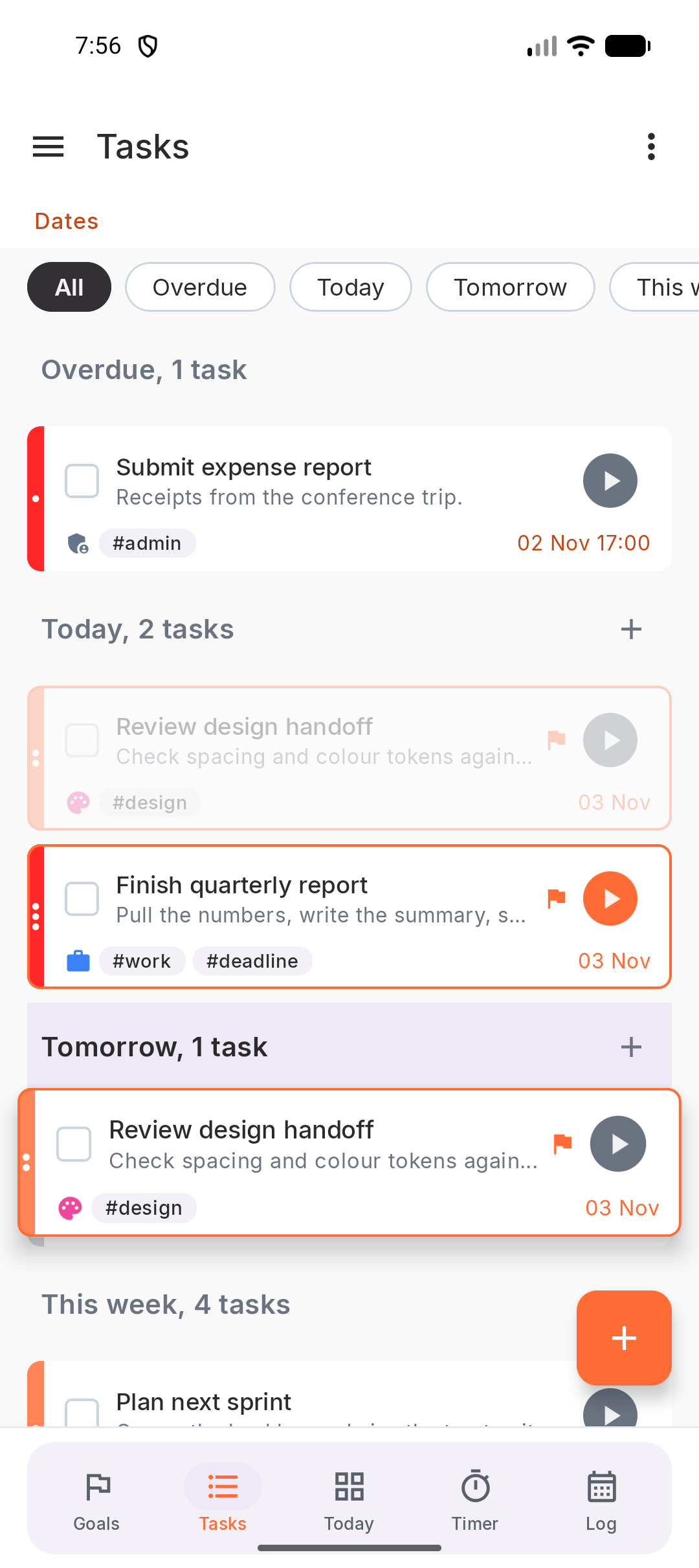
Long-press a card, then move it without lifting your finger, and release it on a highlighted group. If you release without moving, the task menu opens as usual.
Without dragging, long-press a task and use Priority, Energy, In progress or Complete. To change a date, open the task.
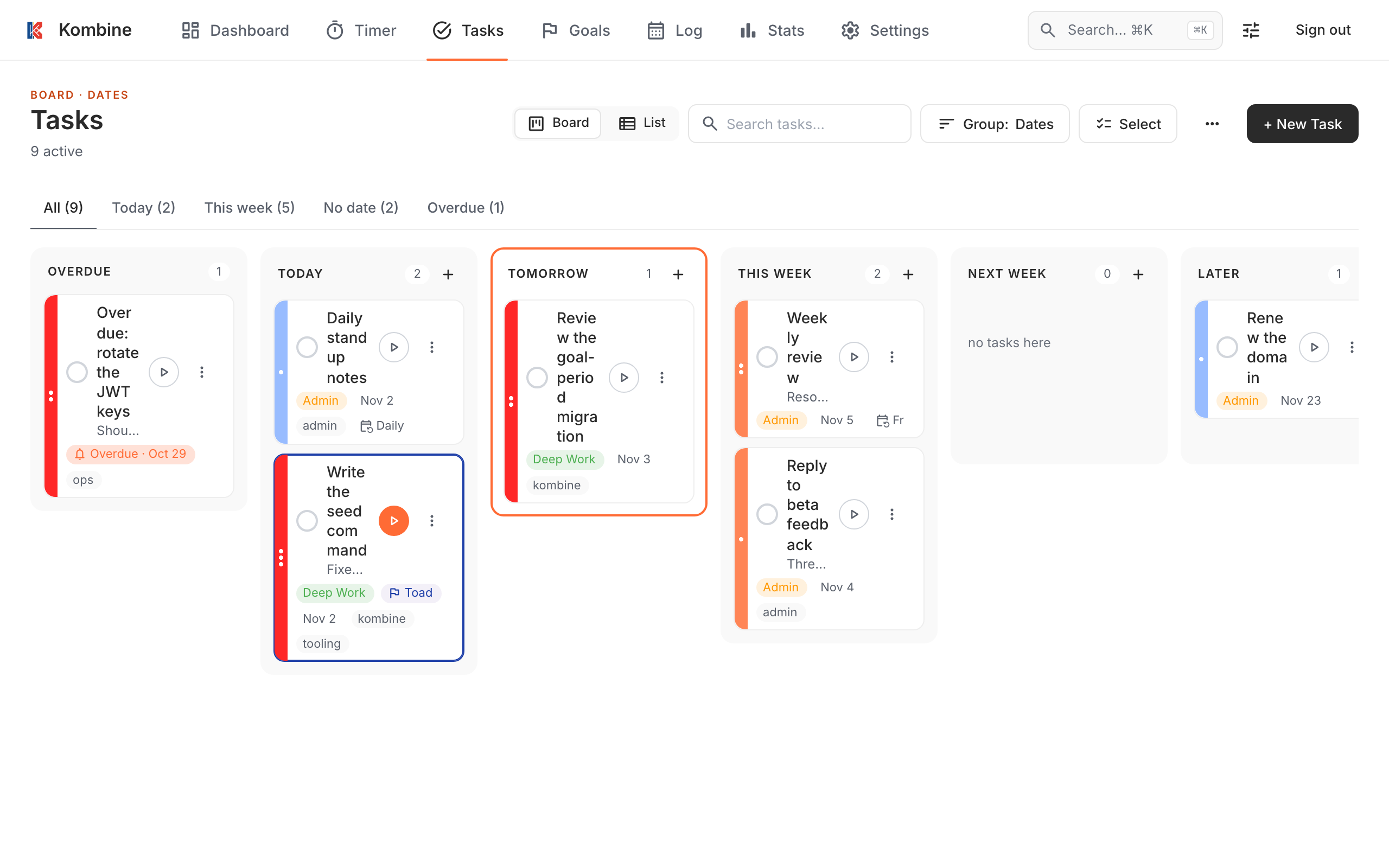
Drag a card to a highlighted group, in Board or List layout.
Without dragging, including on touch devices, open the card’s ⋮ menu and use Move to, Priority or Energy. To change a date, open the task.
Import from Todoist
Section titled “Import from Todoist”Export your Todoist project as CSV, then:
Go to Settings › Import data, tap Choose CSV file, check the preview, and tap Import. Duplicates are skipped.
Go to Settings › Import data, tap Choose CSV file, check the preview, and tap Import. Duplicates are skipped.
Go to Tasks › ⋯ › Import, choose the file (up to 5 MB), and click Import Tasks. Todoist priorities 1–3 become High, Medium and Low; labels become tags.