
Goals
Goals keep the bigger picture in view. Kombine has two kinds: today’s toad for the day, and goals for each week, month, quarter and year.
Today’s toad
Section titled “Today’s toad”The toad is the one task that must happen today, usually the one you’d rather avoid. Do it first and the rest of the day is easier. (The name comes from the “eat that frog” idea.)
- On Goals or Today, tap Pick today’s toad and choose a task.
- Or long-press any task and choose Set as today’s toad.
- Change, Clear or Start session from the toad card. When it’s done, the card says so.
When you open the app, Kombine can ask Which task must happen today?. Choose Skip for now or Never show again if you don’t want that. The next day it asks whether you finished yesterday’s toad.
- On Goals or Today, tap Pick today’s toad and choose a task.
- Or long-press any task and choose Set as today’s toad.
- Change, Clear or Start session from the toad card. When it’s done, the card says so.
When you open the app, Kombine can ask Which task must happen today?. Choose Skip for now or Never show again if you don’t want that. The next day it asks whether you finished yesterday’s toad.
- On Goals or the Dashboard, click Pick today’s toad (Ctrl+I), choose a task and click Set toad.
- From the toad card: Start session, Change or Clear.
- Also on today’s plate lists the next few tasks for today.
Goals for a period
Section titled “Goals for a period”Each horizon (week, month, quarter, year) has its own card. On each card you write a few short goals for that period, tick them off as they come true, and look back when it’s over.
Every card shows how many days are left, colored green, then orange, then red as the period runs out. On the last day it says Last day.
- Add: tap Add a line on a card and write what has to be true by the end of the period.
- Done: tap the box next to a goal. Tap the text to edit or delete it.
- Other periods: swipe the card left or right, or use ‹ ›. Tap the period name to jump to any week, month, quarter or year.
- Details opens the period: its goals, the tasks done and focus time in that period, linked tasks, and where carried goals came from.
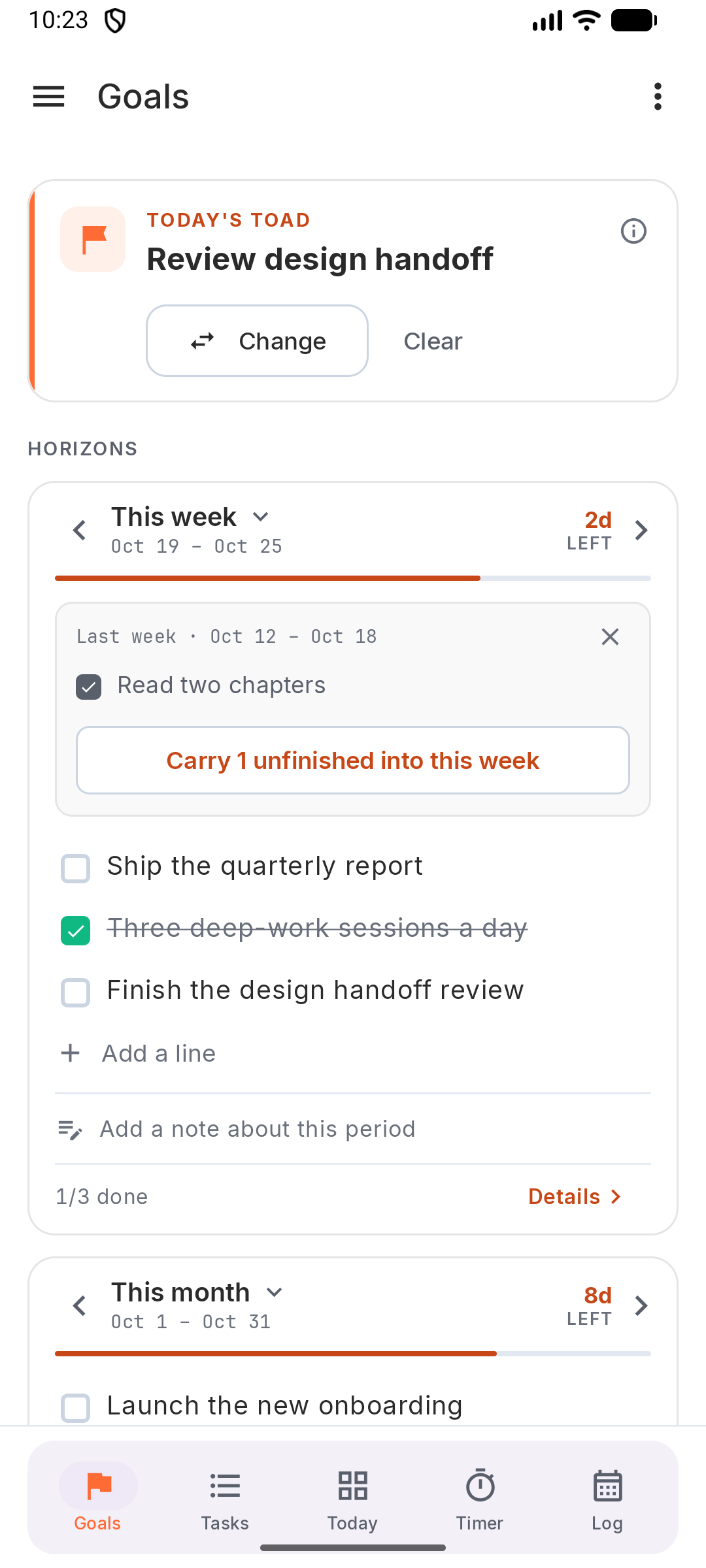
- Add: tap Add a line on a card and write what has to be true by the end of the period.
- Done: tap the box next to a goal. Tap the text to edit or delete it.
- Other periods: swipe the card left or right, or use ‹ ›. Tap the period name to jump to any week, month, quarter or year.
- Details opens the period: its goals, the tasks done and focus time in that period, linked tasks, and where carried goals came from.
- Add: type in the box on a card and click Add.
- Done: tick the goal. × removes it.
- Other periods: use ‹ ›, pick a period from the dropdown (• marks periods with goals), or click Today to come back.
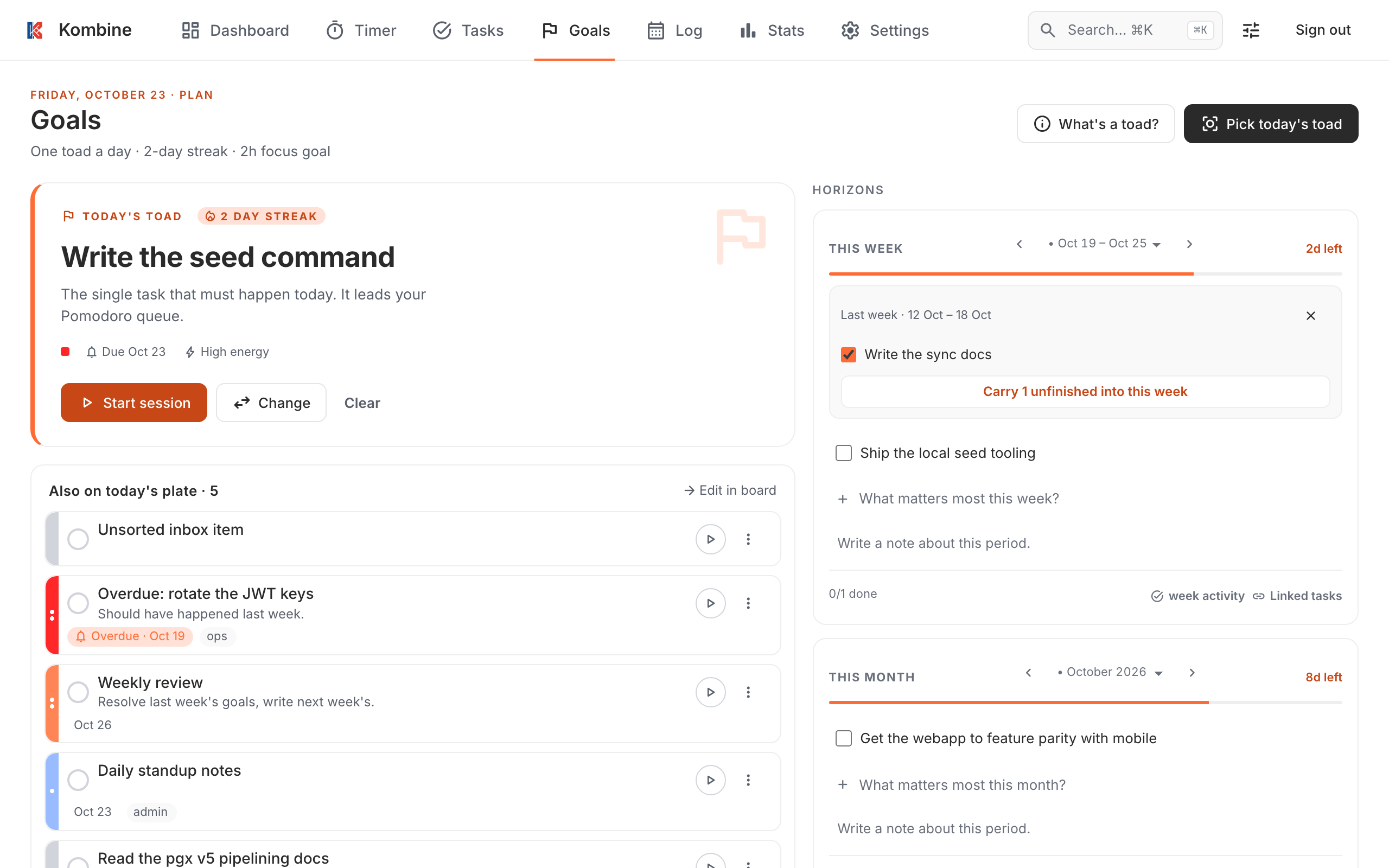
Periods that have ended are locked, so what you wrote stays as it was.
Review and carry over
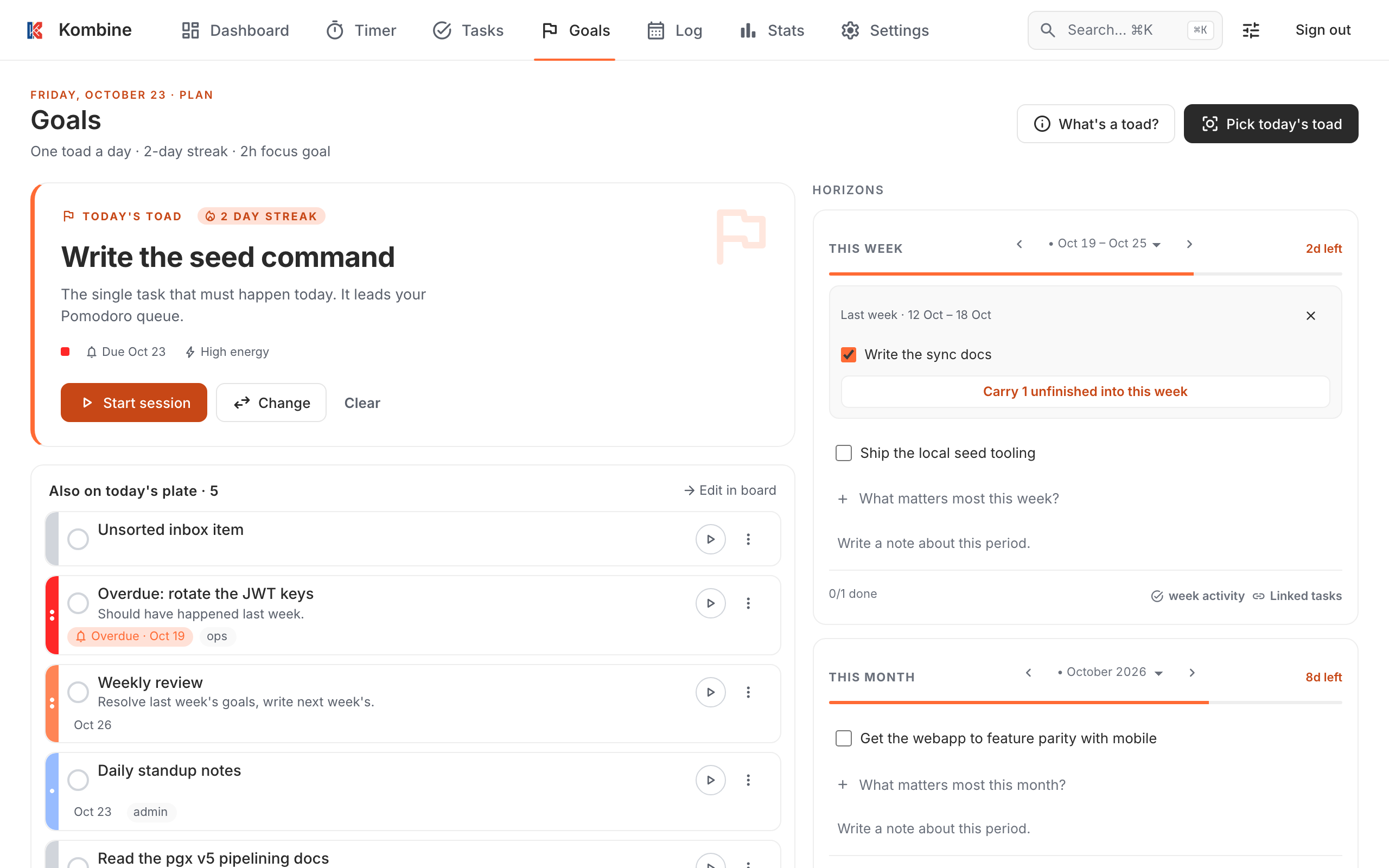
Section titled “Review and carry over”When a new period starts, Kombine lists last period’s unfinished goals. Pick the ones still worth doing and carry them into the new period; leave the rest. Carried goals are marked carried.
Untick what you want to leave behind, then tap Carry N. Not now hides the list for later.
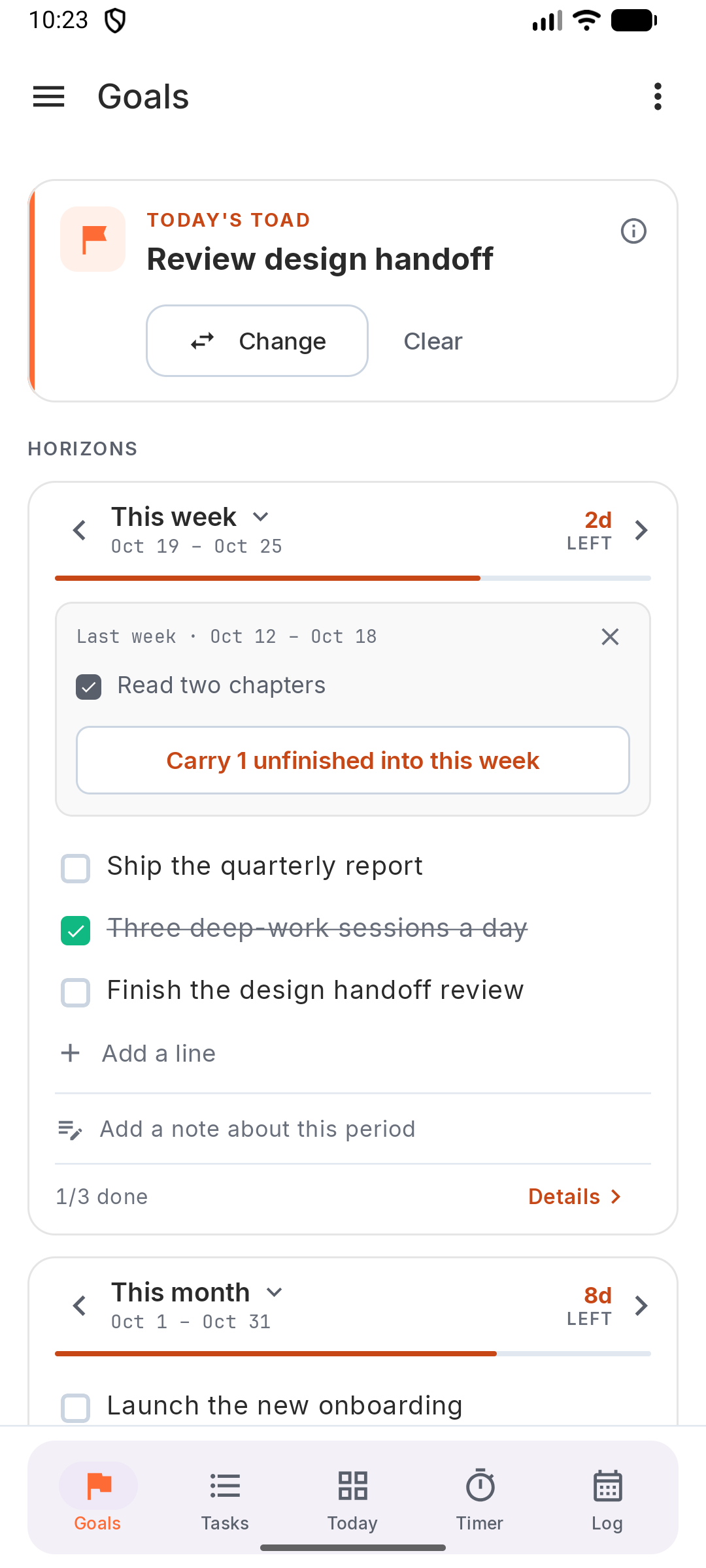
Untick what you want to leave behind, then tap Carry N. Not now hides the list for later.
Untick what you want to leave behind, then click Carry N unfinished into this week (or month, and so on). You can also dismiss the list.
Period notes
Section titled “Period notes”Every period can have one free-form note: how it went, what to change next time. You can write or edit it at any time, even after the period ends.
Tap Add a note about this period on the card.
Tap Add a note about this period on the card.
Click Write a note about this period. on the card, then Save. Clear removes it.
Link tasks to a goal
Section titled “Link tasks to a goal”Link tasks that move a goal forward. The goal then shows how many of its linked tasks are done. Linking is optional; most tasks never need it.
Open a task, tap ⋯ › Link to goal, and pick the goal. Or open a goal’s Details and tap Link a task.
Open a task, tap ⋯ › Link to goal, and pick the goal. Or open a goal’s Details and tap Link a task.
Open a task and pick the goal in its Goal chip.