
Log
The Log shows what happened on a day, in time order:
- Sessions: your focus sessions, with their task, activity and length.
- Notes: short log entries you write yourself (“call with the bank”, “decided to drop feature X”).
- Tasks: tasks you finished, at the time you finished them.
- Decisions: Decided · title when you made a decision, and Reviewed · title when you looked back. Tap either to open it. See Decisions.
You can hide any of the four.
Move between days
Section titled “Move between days”The week strip at the top shows the current week; ‹ › moves a week. Expand it to a month to jump further, and tap a day to open it.
Tap the day’s focus total to open Statistics.
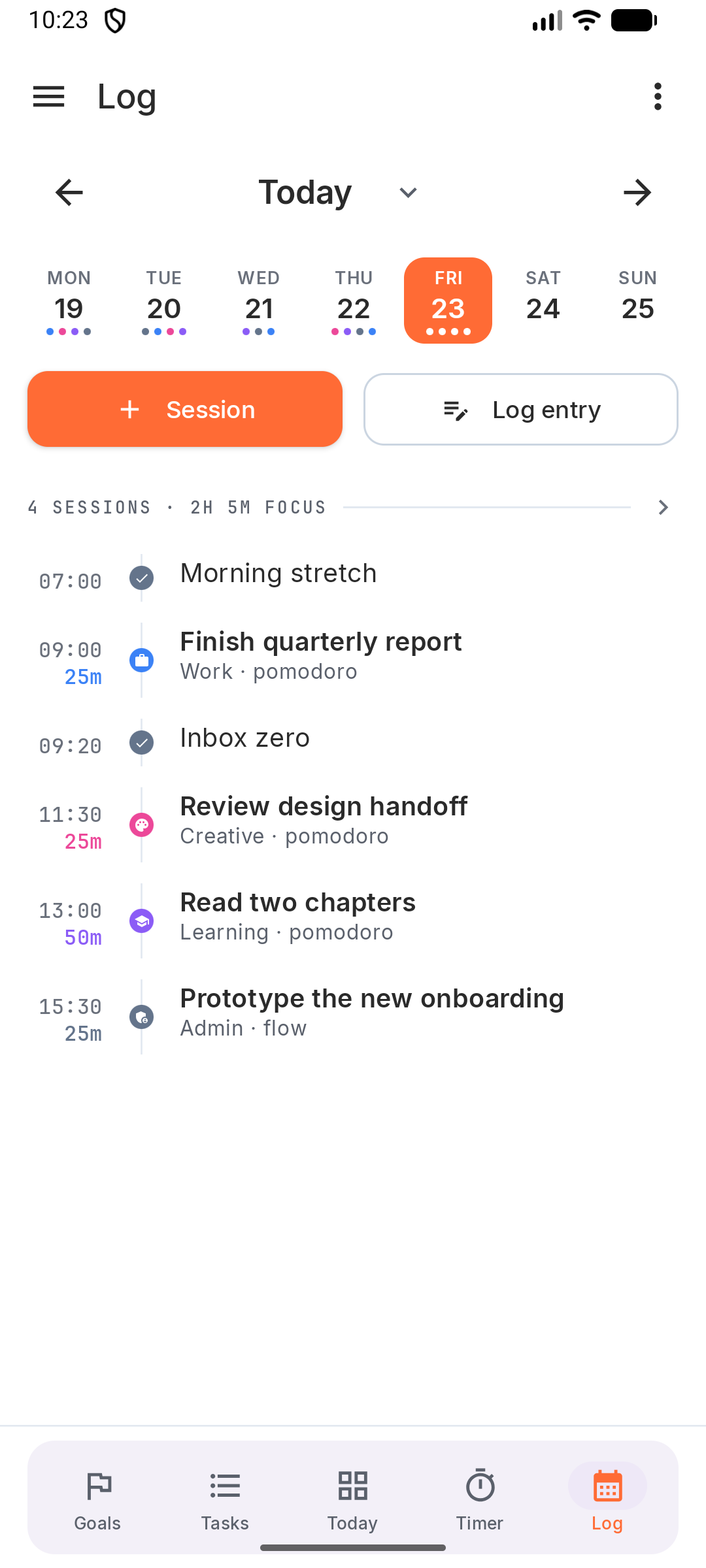
The week strip at the top shows the current week; ‹ › moves a week. Expand it to a month to jump further, and tap a day to open it.
Tap the day’s focus total to open Statistics.
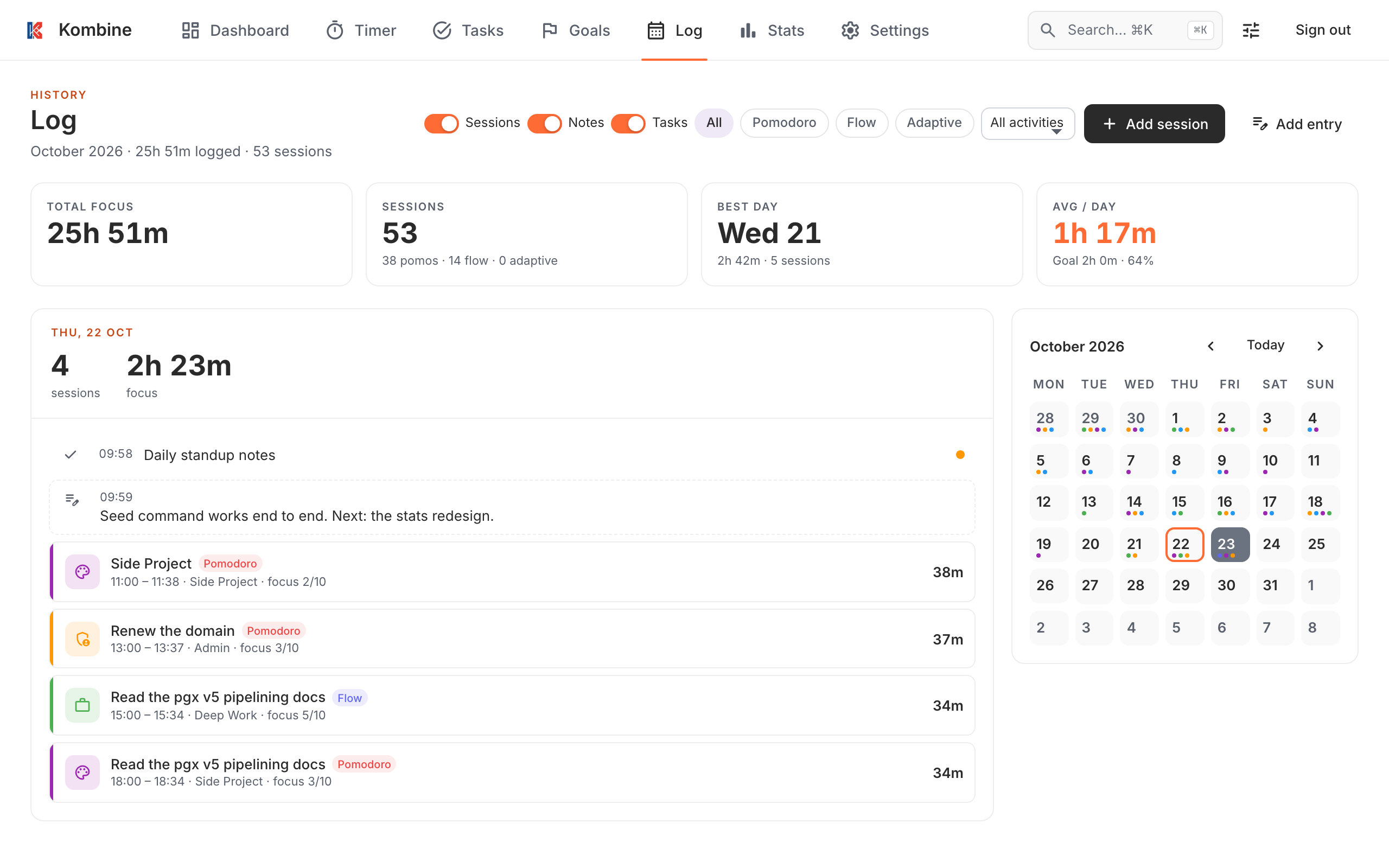
Click a day in the month calendar to see its timeline. ‹ › changes the month, Today comes back. Above the calendar you’ll see the month’s total focus, sessions, best day and daily average.
Add a note
Section titled “Add a note”Notes are for moments: a call, an interruption, a decision, an idea. The time defaults to now and you can change it, so “forgot to log the 11:00 call” is easy to fix.
Tap Log entry in the Log, or Log something on Today. Write one line, adjust the time if needed, and save. Tap a note later to edit or delete it.
On Android you can also add a note from the app icon (long-press › Log entry) or the Log home-screen widget.
The icon next to Log entry is New decision. See Decisions.
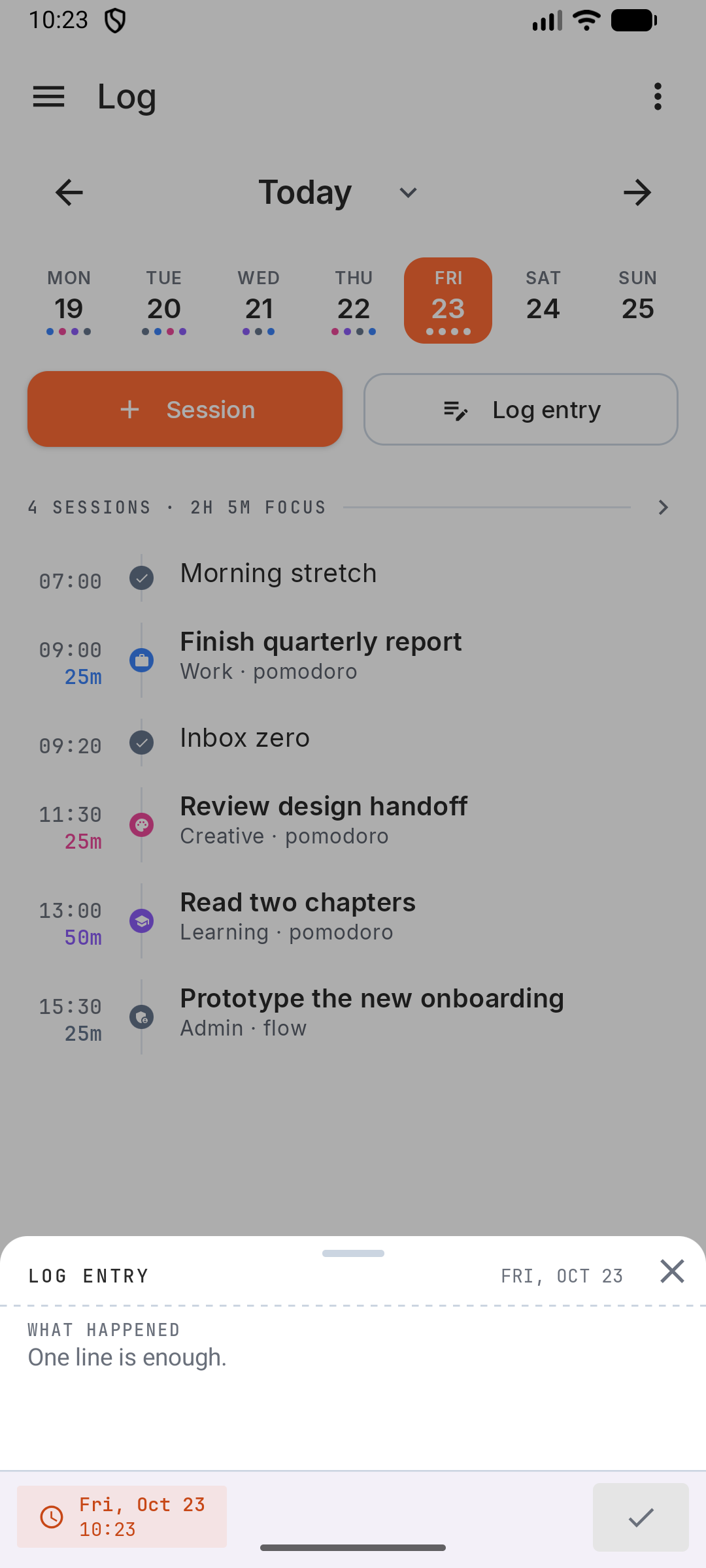
Tap Log entry in the Log, or Log something on Today. Write one line, adjust the time if needed, and save. Tap a note later to edit or delete it.
On Android you can also add a note from the app icon (long-press › Log entry) or the Log home-screen widget.
The icon next to Log entry is New decision. See Decisions.
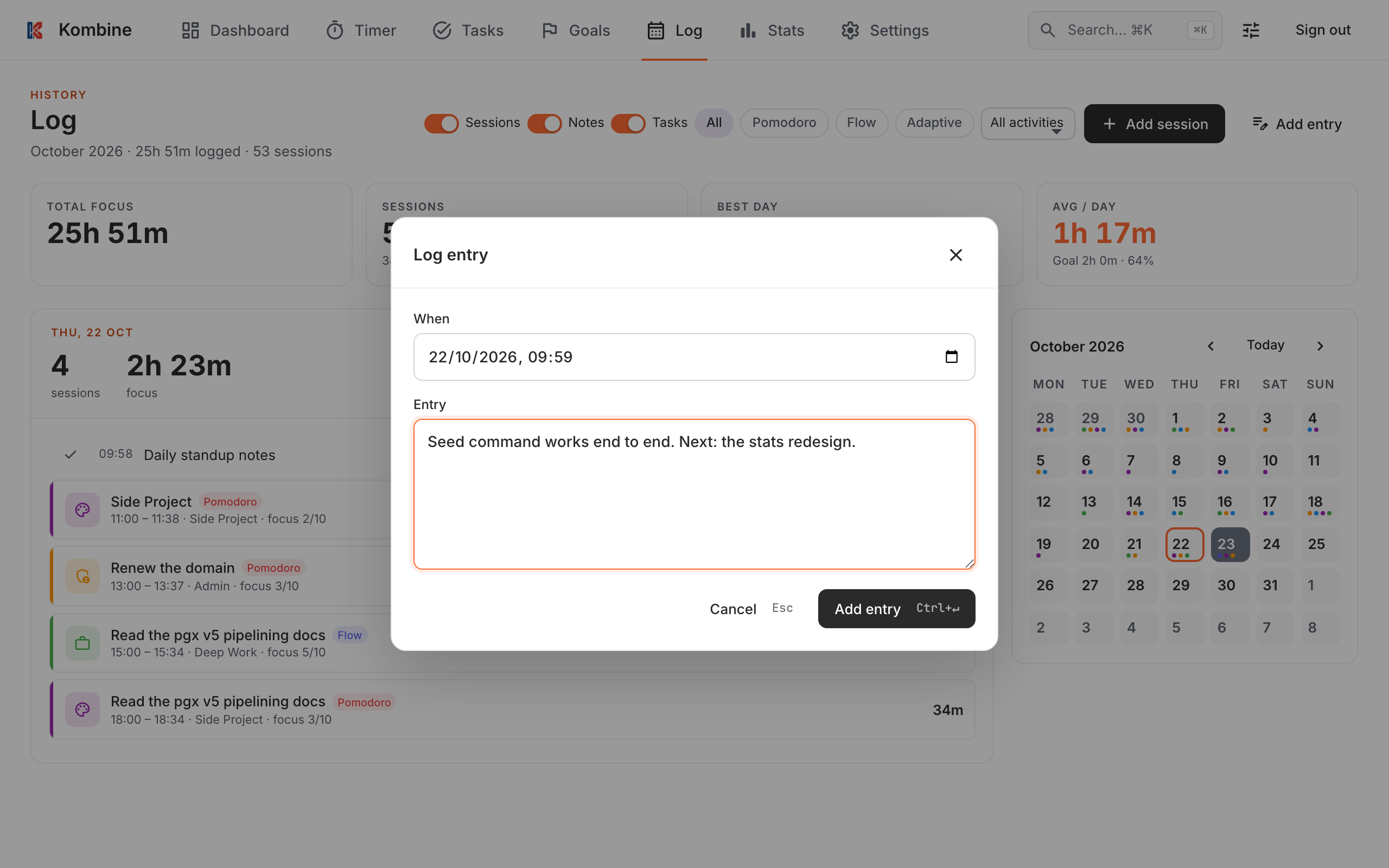
Click Add entry, fill in When and Entry, and click Add entry. Click a note later to edit or delete it.
The icon button after Add entry is New decision. See Decisions.
Add or edit a session
Section titled “Add or edit a session”Forgot to start the timer? Add the session by hand.
Tap Session in the Log. Set when it started, how long it was, the task and activity (optional), the mode, and notes about what you got done. Tap a session later to edit or delete it.
Under the start time, −15, −5, +5 and +15 move the whole session and keep its length. When adding a session, After last starts it where the day’s last focus session ended.
Tap Session in the Log. Set when it started, how long it was, the task and activity (optional), the mode, and notes about what you got done. Tap a session later to edit or delete it.
Under the start time, −15, −5, +5 and +15 move the whole session and keep its length. When adding a session, After last starts it where the day’s last focus session ended.
Click Add session. Set the start, duration, mode, focus level (1–10), task, activity and a note. Click a session later to edit or delete it.
Under the start time, −15, −5, +5 and +15 move the whole session and keep its length. When adding a session, After last starts it where the day’s last focus session ended.
Filter
Section titled “Filter”Open ☰: under Show, switch Sessions, Notes, Tasks and Decisions on or off. You can also filter sessions by activity and by timer mode.
Open ☰: under Show, switch Sessions, Notes, Tasks and Decisions on or off. You can also filter sessions by activity and by timer mode.
Use the Sessions, Notes, Tasks and Decisions switches, the All / Pomodoro / Flow / Adaptive chips and the activity dropdown.
Decision log
Section titled “Decision log”Open ⋮ › Decision log for all your decisions, open and reviewed.
Open ⋮ › Decision log for all your decisions, open and reviewed.
Click Decision log · N open under the month summary for all your decisions, open and reviewed.
More in Decisions.